


Nexoria
Get started

Nexoria document search

Document search: find company documents by meaning, with sources

The enterprise search of the Nexoria platform: find content by its meaning, with source citations and a preview that take you straight to the right document.

Test document search with your own documents

Compared with Glean · Knowledge search Search by keyword or file name and open the matching source in the preview.

Document search in everyday work

Find content. Even without file names.

Describe what you need and check matching passages directly in the original.

Compared with Glean · Knowledge search

Find documents by content

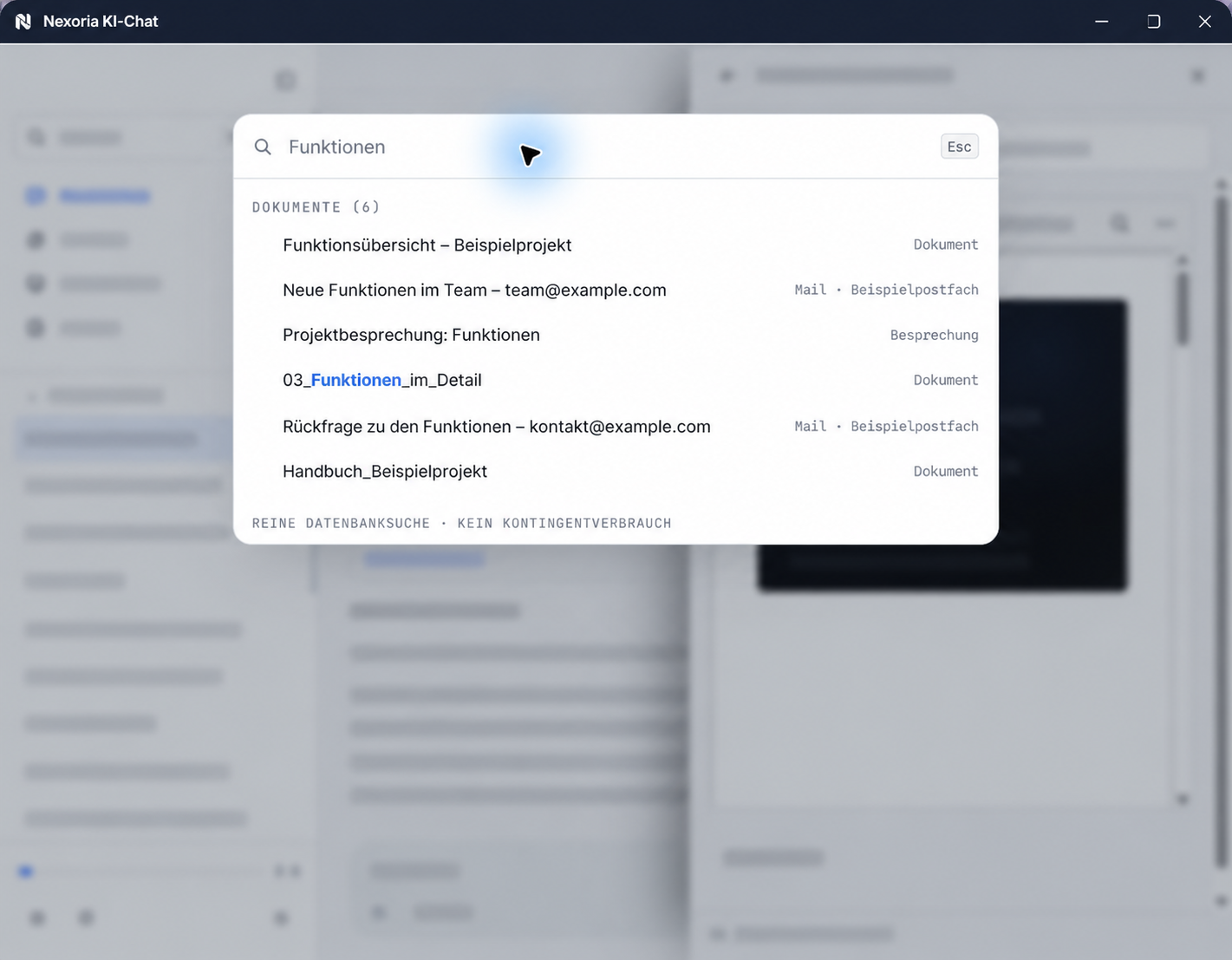
Describe what you are looking for. Document search finds relevant shared content and shows the matching passages with a document preview.

For example in the skilled trades: before the next call-out, you find the maintenance documents and read the notes on the last job.

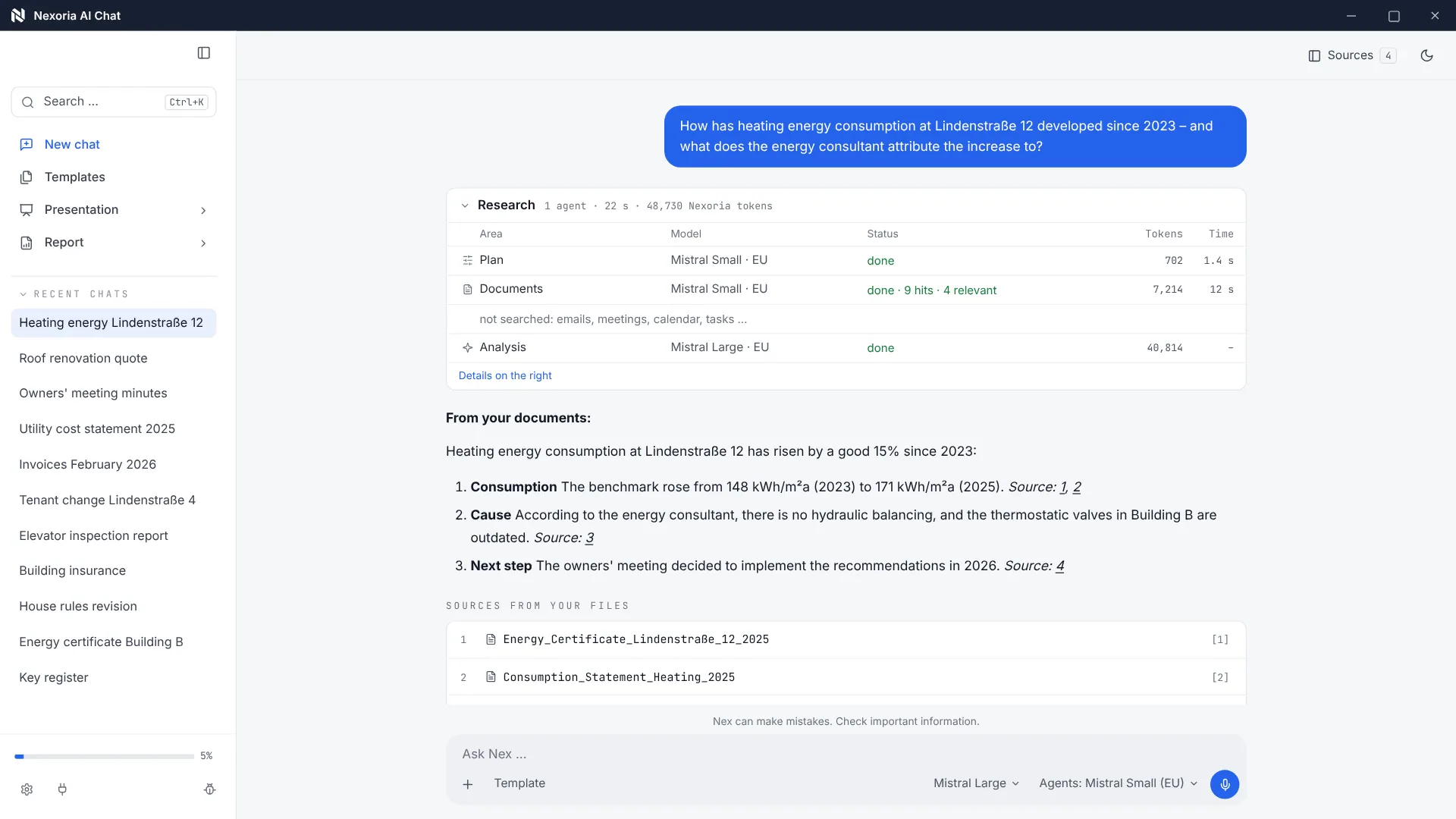
Document search in Nex: results from documents, emails and meetings. Sample content anonymised for publication.

Watch video: Document search and sources

Search naturally.

Ask questions about the shared document collection in your own words.

Check results.

Sources and document preview show where a result comes from.

Without AI tokens.

Document search remains available even when the token allowance is used up.

Document search · Meaning

Know the content.
Not the file name.

  • Search shared content in natural language.
  • Find content by its meaning.
  • Open the right document via the source citation and preview.
How semantic search works

A look inside the application

Nex: Document search

Document search in Nex: results from documents, emails and meetings. Sample content anonymised for publication.

Document search in Nex: results from documents, emails and meetings. Sample content anonymised for publication.

Enlarge view

Document search · Sources

See the result.
With the source alongside.

  • Every result points to the corresponding document.
  • View tables, images and formatting in the preview.
  • Search in the dedicated search window or within Nex.
View all features

Document search · Knowledge spaces

The right content.
For the right team.

  • Each workspace has a separate knowledge base.
  • Search takes the shared content into account.
  • Files, the knowledge index and semantic search run in Germany.
Document search data flow

How results with sources are produced

Which processing takes place where is shown in the Document search data flow.

  1. Step 1

    Prepare the content

    The shared content from Nexoria Drive and from configured integrations is split into sections and converted into embeddings. This computation runs on servers in Germany, with models that Nexoria operates there itself; the documents do not leave the environment for this.

  2. Step 2

    Ask a question

    You search in natural language, in the dedicated search window or in the AI chat. No search syntax is needed, nor any knowledge of the folder structure.

  3. Step 3

    Match content

    The query is matched against the indexed content of the shared collection. Check the results using your own test questions and source documents.

  4. Step 4

    Show result with source

    The results appear with the respective source document and a preview of where the match was found. In the AI chat, a fully formulated answer is generated on the same basis, naming the documents used.

Nexoria document search · Process
01of 4 steps
  1. 1Prepare the contentThis step is open
  2. 2Ask a question
  3. 3Match content
  4. 4Show result with source
Explanatory graphic · Process for the selected step

Nexoria document search in detail

Everything you want to know.

Document search is the enterprise search of the Nexoria platform. It searches the shared content of a workspace by meaning rather than by character strings, so a document can appear even if the word entered does not occur in it at all. For every result, the search names the source document. It is available in the AI chat and as a dedicated search window and does not consume AI tokens.

Definition

What is document search?

Document search looks through the content of a workspace semantically, in the AI chat and in a dedicated search window, and cites the source for every result. It is the enterprise search of the Nexoria platform; what the term means in general is explained in the glossary: What is enterprise search?

This makes search the layer between storage and answer: the content comes from Nexoria Drive and from configured integrations, and the same index is also used by Nex, when it answers a question. Anyone who is only looking for a document uses the search window. Anyone who needs a fully formulated answer asks in the chat. The basis is the same in both cases.

Nexoria Drive, document search and the AI assistant Nex form the core of the Nexoria platform. Which components build on this is shown in the component overview.

Your everyday work

Find relevant content faster

When searching within a company, different wording can become an obstacle. The contract says notice period, but people search for exit clause. The minutes say delivery delay, but people search for postponement. A pure keyword search without suitable language processing or synonyms can miss such passages. In addition, the document must actually be part of the indexed and shared search content.

Source citations and document preview link the search result to the relevant passage. This lets your team verify results directly in the original and keep working with the knowledge found. It also makes it easier for new employees to get to grips with document collections that have grown over time.

Distinction

File search in File Explorer or document search?

Both searches have their place, but they start from different points.

Windows file search provides access to files via the taskbar and File Explorer, according to Microsoft. In File Explorer, for example, you select a drive or a folder; depending on the account and settings, cloud files also appear. In classic mode, the local search index covers Documents, Pictures, Music and Desktop by default. Which file contents are indexed depends on the file type and settings. On Copilot+ PCs, semantic indexing supplements conventional search.

Nexoria's document search searches the shared, indexed content of a workspace, i.e. the knowledge your team uses together. It finds content by its meaning, names the source document for every result with a preview of where the match was found, and searches only the workspace it is assigned to. On the same basis, Nex answers questions with source citations.

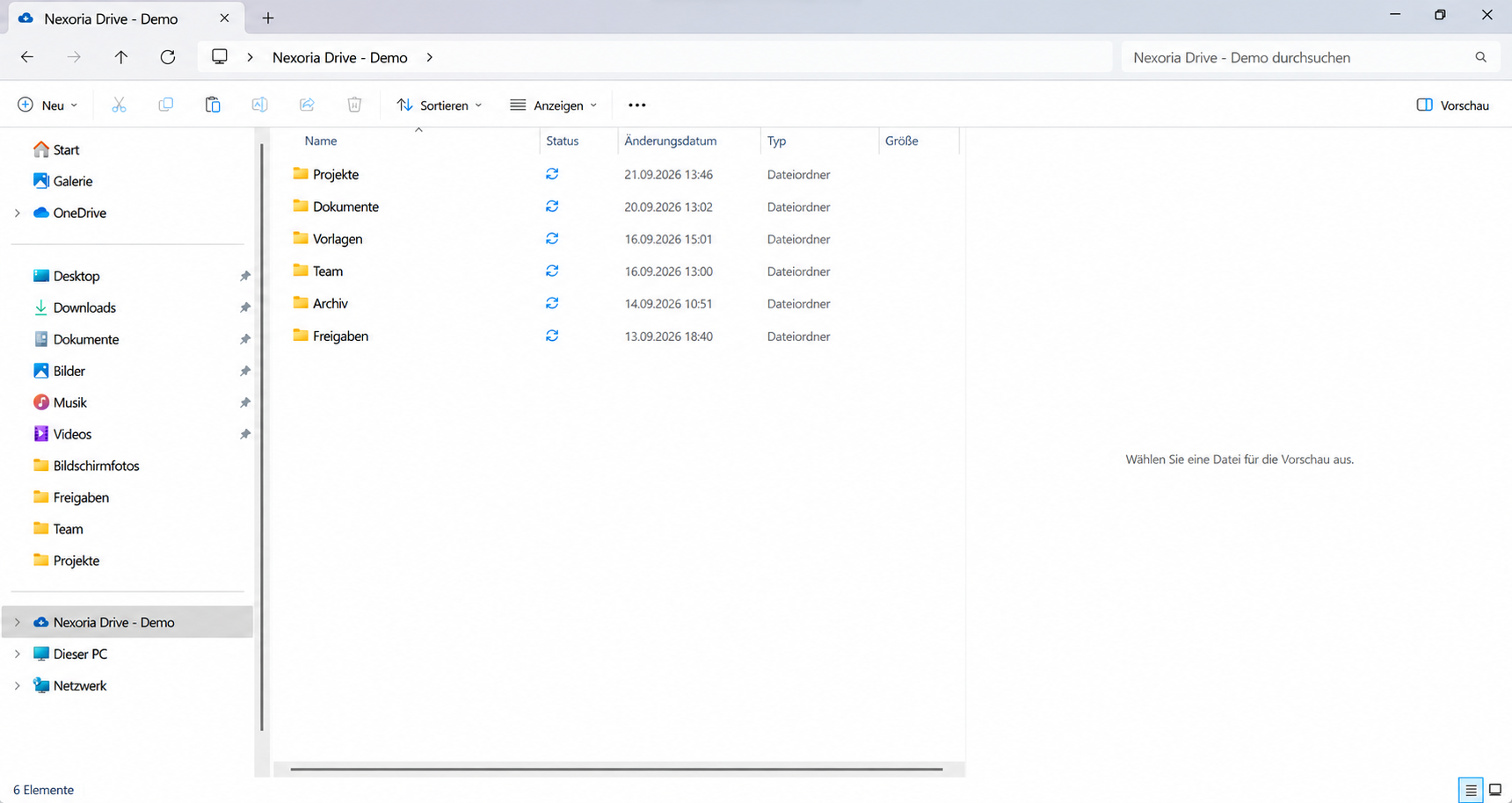
You keep the familiar route via File Explorer: on Windows, Nexoria Drive integrates into File Explorer as a drive. Shared content is indexed and is then available in document search.

  • You know the file name or storage location and are searching on your own device: Windows file search takes you there.
  • You know the content but not the file name, or you are searching your team's shared content: document search finds the right passage and cites the source.
Nexoria Drive as a drive in Windows File Explorer with folders and sync status.
Nexoria Drive as a drive in Windows File Explorer: folders and sync status in one view.

Key point

Search by meaning and by keyword

A full-text search matches search terms against the indexed words of a document; depending on the system, word forms are normalised or stored synonyms are taken into account. A semantic document search converts text passages and the query into embeddings, i.e. numerical representations in which proximity stands for similarity of content, and in this way compares their meaning. A question about the exit clause can therefore make a paragraph on the notice period findable. How the method works in detail and where its limits lie is explained in the glossary.

Start with typical search queries

For your pilot, use both content questions and exact identifiers, such as file references, invoice numbers or item codes. This way you test document search on the tasks that come up every day in your company. Check the results against the source documents.

Source citations included

The source display makes semantic results traceable: for every result, you see the source document, with a preview of where the match was found, including tables, images and formatting. This lets you check every result directly in the document. How well the search handles your own documents is shown by the test tasks below.

Sources and access

Cross-system document search: which content is searched?

For Nexoria document search, what counts is the indexed, shared content in Nexoria Drive and in configured integrations. You transfer files from SharePoint, an email inbox or a network drive, for example on a file server, into this content so that the search can find them. SharePoint, OneDrive and Google Drive can also be connected as knowledge sources on request. We set up the integration depending on the environment and permissions. On request, we also check whether further storage, CRM, ERP and in-house systems can be connected. Scope, updates and permissions are defined for each integration. How an integration works is described on the page Integrations with SharePoint, OneDrive and Google Drive. For a file server that has grown over time, the file server question in the FAQ explains the steps in detail.

Scanned documents and recordings are made searchable by the Speech and text recognition component; the recognised content goes into the same index. Who sees which results is determined by Workspaces: document search only searches the content of the workspace it is assigned to.

Start with a clearly scoped case, such as a project or a set of contracts, and clarify three points before transferring the content:

  • Which shared documents are included? Record the origin, the authoritative document version and any missing documents. Check the indexing with your actual files.
  • Who is allowed to see this content? Assign the test collection to suitable workspaces and check results and sources with different test accounts.
  • Where will the originals continue to be maintained? Decide who transfers changes into the search content, so that answers are not based on outdated copies.

How to handle libraries, metadata and permissions before a switch is described in the SharePoint comparison. The following test tasks assume a test collection that has already been selected and shared.

Practical test

Testing document search: four questions for your own content

Check content, document version and access with a small shared test collection. The following table contains four test tasks for your own trial.

Test tasks for document search with your own documents
Test taskHow to assess the result
Same content, different wordingAsk “When can we terminate the contract?” even though the document refers to a “notice period”. The relevant section should be findable; compare the statement with the original.
An exact identifierSearch for a unique contract or invoice number from your test collection. Check whether the result actually belongs to this identifier.
A piece of information is missingAsk about a date or amount that does not appear in any shared source. An answer must not present this missing detail as a fact supported by a source.
Same question, different accessRepeat the contract question with a second test account that has no access to the workspace concerned. Check search results, preview and chat answer for content that should not be shown.

For each task, record the question, expected source, actual result and document version used. A matching result is helpful; for important decisions, the source must also support the specific statement. AI answers can contain errors.

The test log with 20 test cases contains templates for source fidelity (case 10), permissions (case 16) and revocation of permissions (case 17). For case 16, compare the same question with two test accounts: one with access to the workspace and one without. Record the search results, preview and chat answer separately. For case 17, also note the time of observation after permissions are revoked.

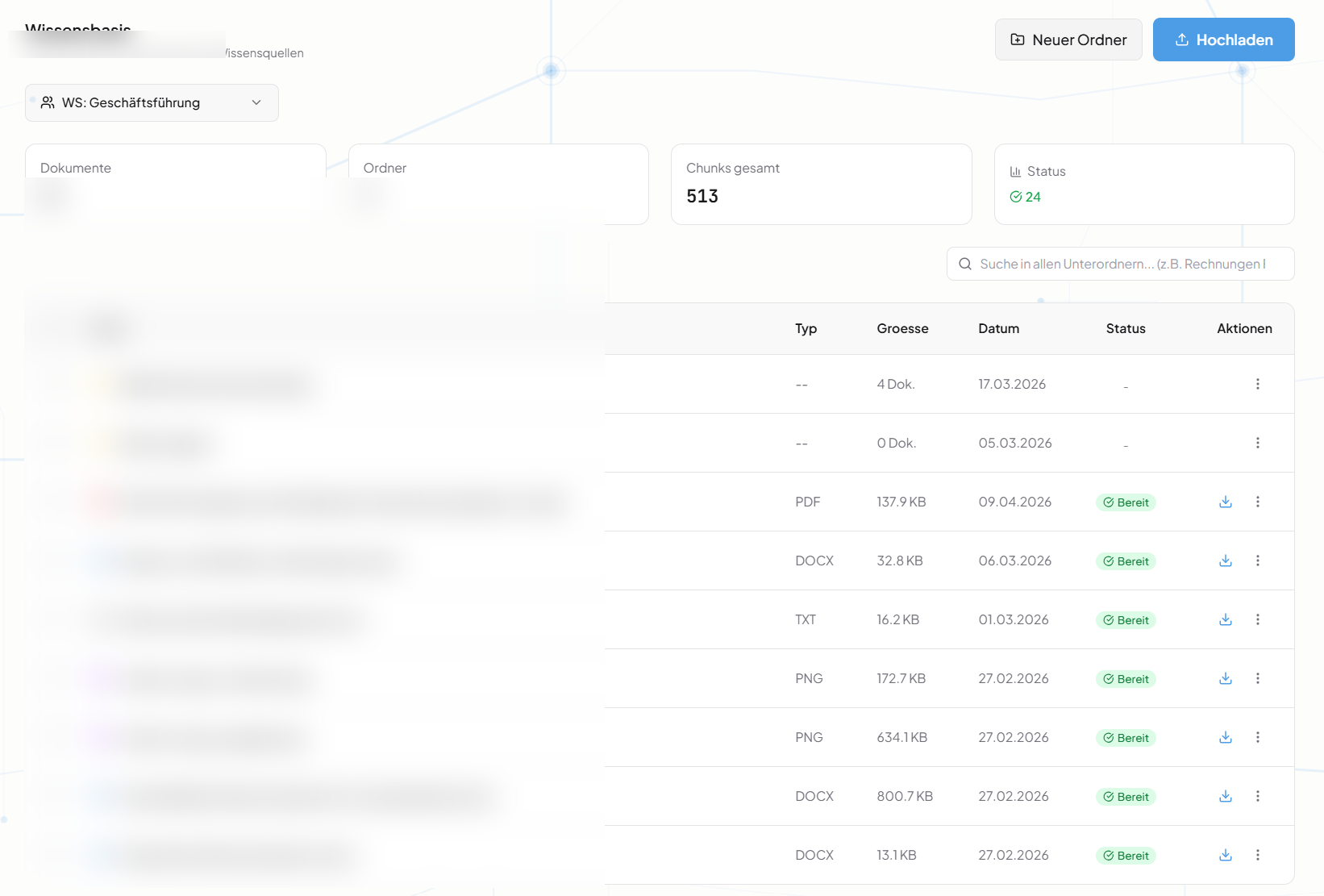
Knowledge base of a workspace with document status and obscured file and folder names.
Product view of a workspace knowledge base; file and folder names have been obscured.

The guide to introducing AI knowledge search brings these checks together into a pilot. What finding by content looks like in everyday filing is shown in the Example: finding the notice period without knowing the file name. For a test with your own documents, book an appointment.

Product data

Document search fact sheet

Product fact sheet

Document search

Document search looks through the content of a workspace semantically, in the AI chat and in a dedicated search window, and cites the source for every result.

Category
Enterprise search and semantic document search
Problem
Makes the shared content of the respective workspace findable by what it contains.
Target group
Businesses; the offer is aimed at business customers within the meaning of Section 14 of the German Civil Code (BGB).
Core features
  • Semantic search across the shared content of the respective workspace
  • Search in the AI chat with Nex and in a dedicated search window
  • Source citation for every result
  • Document search without consuming AI tokens
Input
Search queries in natural language
Output
Results with source citations and document preview, with tables, images and formatting
Integration in Nexoria
Included in the core product, works on the index from Nexoria Drive and configured integrations, and is also available in the AI chat.
Privacy
Each workspace has its own knowledge base, with tenant separation at database and vector store level. Embeddings and semantic search run on servers in Germany, with models that Nexoria operates there itself.
Hosting
Document embeddings and semantic search run on servers in Germany, using models that Nexoria operates there itself.
Status
Feature available. Registration and online purchase of the Base and Pro plans have been available since 15 September 2026.

Document search searches a workspace's content semantically and names the source for each result. This describes how the search works, not the quality of its results.

Requirements

Requirements for document search

  • Search works on the indexed content in Nexoria Drive and in configured integrations.
  • How the workspaces are structured determines which content is searchable for whom.
  • Scanned documents and recordings are made searchable by the Speech and text recognition component.
  • The effort for the initial indexing of existing content depends on its size and is calculated individually during setup.
  • The offer is aimed at business customers within the meaning of Section 14 of the German Civil Code (BGB); all prices are net prices.

Evidence

Once the token allowance is used up, tokens can be topped up automatically or manually. Without a top-up, new AI requests are paused. Document search continues to work and does not consume any tokens.

Source: Pricing. Checked on .

You can find the current plans under Pricing.

Processing

Document search data flow

The table shows, step by step, where document search processes which data.

Document search data flow by processing step. As of .
Processing stepWhat happens and whereSource
Storage and knowledge indexFiles and the knowledge index are stored on servers in Germany, and search runs there too.privacy policy
checked on
Text recognition and transcriptionText recognition (OCR) makes scans and images accessible, and transcription makes audio files accessible. The recognised content is indexed and available for search.privacy policy
checked on
Document embeddingsDocument embeddings and semantic search run on servers in Germany, using models that Nexoria operates there itself.privacy policy
checked on
Search query and results listSearch uses models that Nexoria operates itself on servers in Germany: for embeddings, query expansion and relevance scoring. Search does not consume AI tokens.privacy policy
checked on
Permissions during searchWorkspace sharing settings determine which content people and assigned chatbots use for search.Workspaces
checked on
Separation of knowledge basesStrict data isolation per tenant at database and vector store level, a role model with Admin, Member and Viewer, server-side permission checks on every API endpoint.processing register
checked on
Fully formulated answer in the AI chatBy default, Nex uses Mistral AI for answer generation; for this, Mistral AI receives the query and relevant context excerpts from the knowledge base.privacy policy
checked on
Optionally connected external AIChatGPT (OpenAI), Claude (Anthropic), Gemini (Google) and Langdock can optionally be connected to Nexoria; Nexoria also works without these integrations. When connected, shared content is transferred to the respective provider; that provider's terms, processing locations and settings apply.privacy policy
checked on

Technical error monitoring and enabled add-on services such as Nexoria Mail, Nexoria Meet or the VoiceBot also have their own data flows; the service providers involved are listed in the processing register. Processing locations and safeguards for the entire platform are described on the page Security and privacy.

Features

Document search features

  • Semantic search across the workspace's shared content, in natural language.
  • Source citation for every result, with the document it comes from.
  • Document preview in the search result, with tables, images and formatting, without downloading.
  • Two access points: a dedicated search window outside the chat and search within Nex.
  • Searchable content from Nexoria Drive and from configured integrations.
  • Scanned documents and recordings searchable via text recognition and transcription.
  • Separate knowledge base for each workspace, at both database and vector store level.
  • No AI tokens consumed, so it remains available even when the allowance is used up.

Where this component fits into the overall picture is shown in the component overview.

Comparison

Document search and traditional search compared

What is compared is the method, not a specific product: a full-text search over a file repository versus Nexoria document search.

Full-text search and Nexoria document search. As of .
AspectFull-text searchNexoria document searchSource
Basis of the resultMatching of indexed words, with linguistic normalisation depending on the systemSimilarity of meaningProduct and features
checked on
Different word for the same thingDepends on language processing and synonym dictionariesCan be found through similarity of contentProduct and features
checked on
File references and numbersExact identifiers as search terms; check how the respective search index processes themCheck whether exact identifiers can be found using your own documentsProduct and features
checked on
Result formatResults list; how matching passages are displayed depends on the productResults with source document and a preview of where the match was foundProduct and features
checked on
Route to a fully formulated answerA fully formulated answer requires an additional functionSame basis in the AI chat, Nex answers with source citationsProduct and features
checked on
Processing locationVaries by providerEmbeddings and search on servers in Germanyprivacy policy
checked on

Further reading

Further reading

Sources for context

As of

  1. Dictionaries, PostgreSQL 18 Documentation. PostgreSQL Global Development Group, 2026. https://www.postgresql.org/docs/18/textsearch-dictionaries.html Retrieved on .Full-text search dictionaries remove stop words, normalise word forms and can include synonyms.
  2. Find your files and apps in Windows. Microsoft Support, 2026. https://support.microsoft.com/de-de/windows/experience/storage-filemanagement/find-your-files-and-apps-in-windows Retrieved on .Search via the taskbar or File Explorer, selection of drive or folder; semantic indexing on Copilot+ PCs.
  3. Search indexing in Windows. Microsoft Support, 2026. https://support.microsoft.com/de-de/windows/experience/performance-optimization/search-indexing-in-windows Retrieved on .Index of files and properties on the device; classic default folders and selection of content indexing by file type and setting.

The sources support the description of full-text search and Windows file search. Third-party information may change. Date of all retrievals: .

As of

FAQ

Frequently asked questions about document search

What is the difference between semantic search and full-text search?

Full-text search matches search terms against indexed words. Depending on the system, it also takes word forms or stored synonyms into account. Semantic search adds similarity of content and can therefore find passages that are worded differently. Nexoria offers semantic search within the shared content. Test exact identifiers and content questions with your own test cases. For every result, you see the source document with a preview of where the match was found.

What exactly does source citation mean?

For every result, the document it comes from is identified, together with a preview of where the match was found, including tables, images and formatting. This makes it possible to verify a statement within the company instead of having to take it on trust.

Where does search run, in the chat or separately?

Both. Document search is available in the AI chat, where it forms the basis for answers from Nex, and also as a dedicated search window outside the chat, for when someone is only looking for a document and does not need a fully formulated answer.

How do files from SharePoint, email inboxes and network drives get into the search?

Document search searches the indexed, shared content of the respective workspace in Nexoria Drive and in configured integrations. You transfer files from SharePoint, an email inbox or a network drive into this content so that the search can find them. SharePoint, OneDrive and Google Drive can also be connected as knowledge sources on request; we set up the integration depending on the environment and permissions. You define the selection, transfer and updating of the content, as well as sharing via workspaces, during rollout.

We have a file server that has grown over time, and search finds nothing on it. Can Nexoria help?

Yes, by transferring the documents that should become searchable into Nexoria Drive. On Windows, Nexoria Drive integrates into File Explorer as a drive, so you continue to work in the familiar File Explorer view. Shared content is indexed; you then search by content in natural language, without needing to know the folder structure of the old file server, and see the source for every result. You decide during rollout which documents are transferred, which version applies and who sees what. We check the integration of further storage systems on request, depending on the environment and permissions. Setup is carried out individually according to the work involved, depending on the volume of data to be indexed. If the content is to stay on the server and be searched there, the overview “What types of enterprise search solutions exist” provides guidance. Whether reorganising is still worthwhile, for example because of access permissions, is answered in the section “Folder structure that has grown over time: reorganise or make it searchable?“

Is document search a document management system?

Document search specialises in finding and using your company knowledge: it makes shared content findable and cites the source for every result. It can be combined with a DMS for archiving and document-related processes. Which tool handles which task is shown in the overview “Enterprise search, DMS or wiki: which does what?“

Does search consume AI tokens?

Document search does not consume AI tokens and remains available even when the AI chat allowance is used up. This means you still have access to your company knowledge.

Can scanned documents and recordings also be made searchable?

This is handled by the component Speech and text recognition. It transcribes recordings and recognises text in scans and images; the result is indexed and can then be found via document search.

Does every employee see all results?

No. Searches run within the content of their respective Workspaces. Each workspace has its own knowledge base, and the separation applies at both database and vector store level. Content that a workspace does not share does not appear as a result.

Contact

Your next step

Test document search with your own documents. In a conversation, we look at typical questions from your day-to-day work and the documents that contain the answers. We agree the scope and setup with you based on your content.